# Creative Studio
The [Creative Studio](https://tokenflux.dev/creative) is TokenFlux's browser-based image tool. It generates and edits images right in the browser, with no client to install and no API key to configure.
## Three Modes
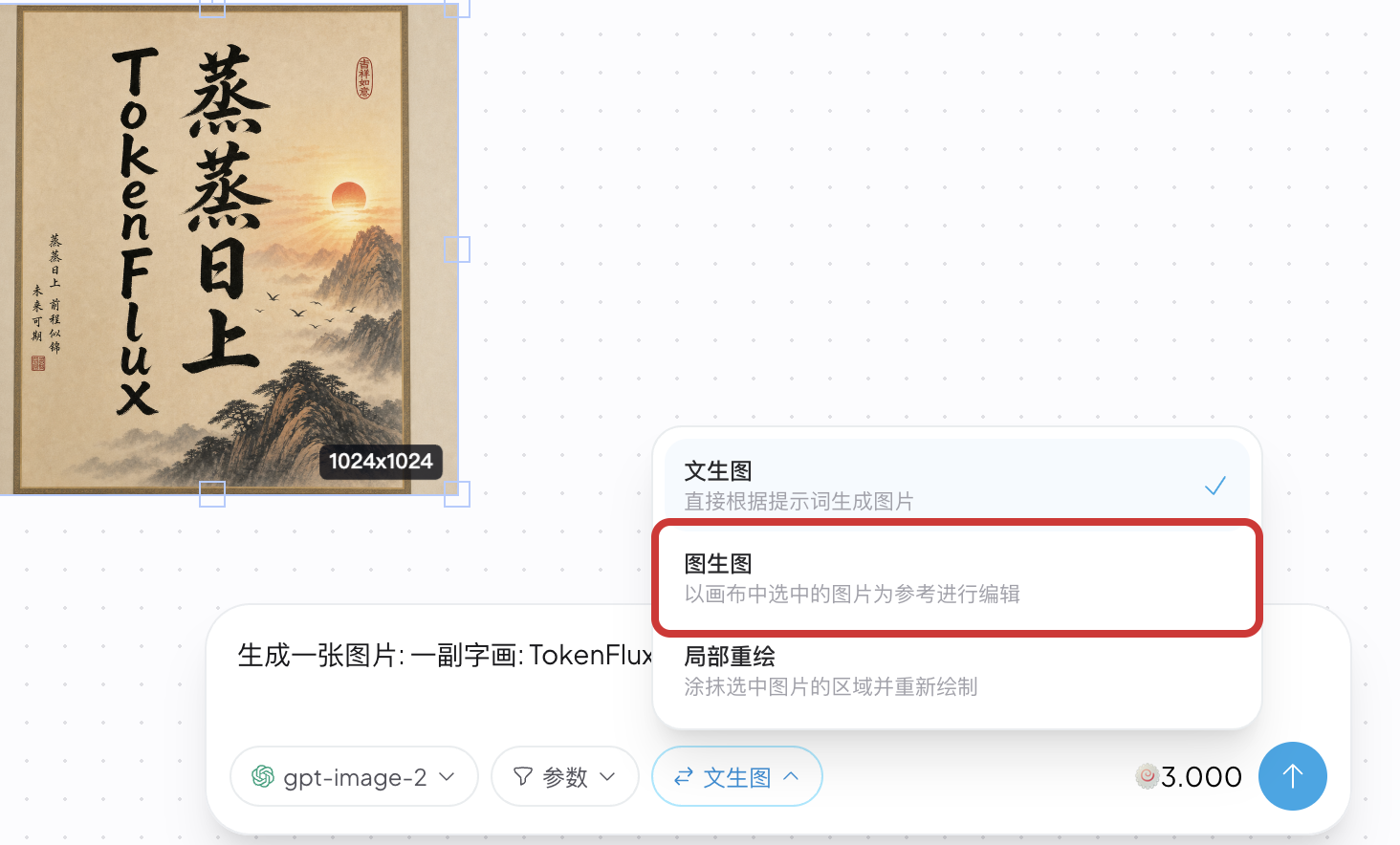
The mode button on the right of the prompt box switches how the studio works.
| Mode | Behavior |
| ---------- | -------------------------------------------------- |
| `Generate` | Generates an image straight from the prompt |
| `Edit` | Edits using the selected canvas image as reference |
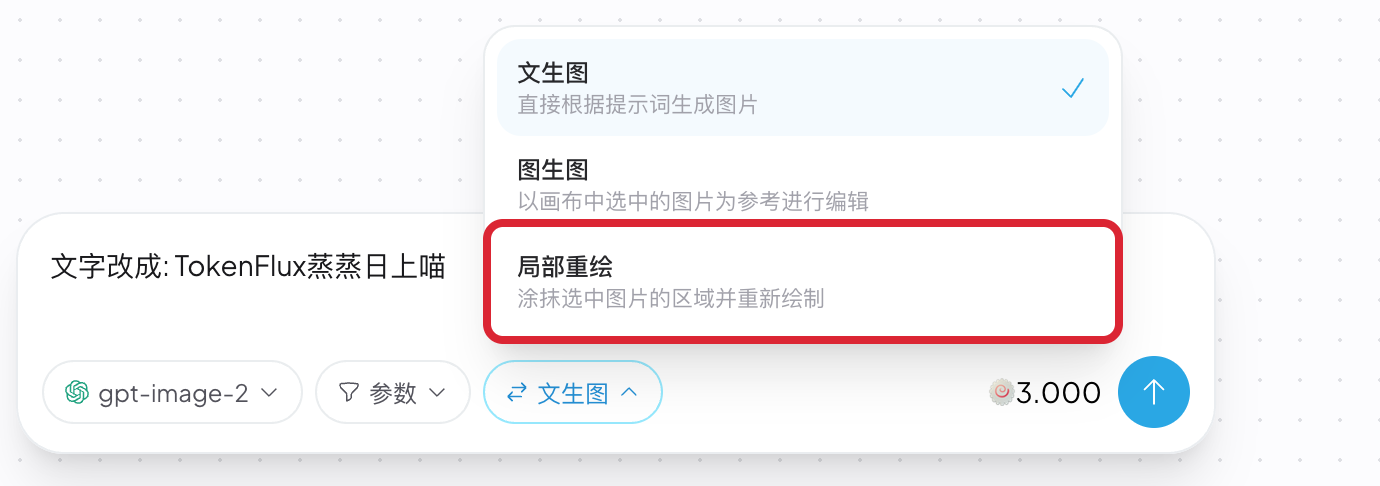
| `Inpaint` | Paints over the selected image to redraw that area |
## Choosing a Model
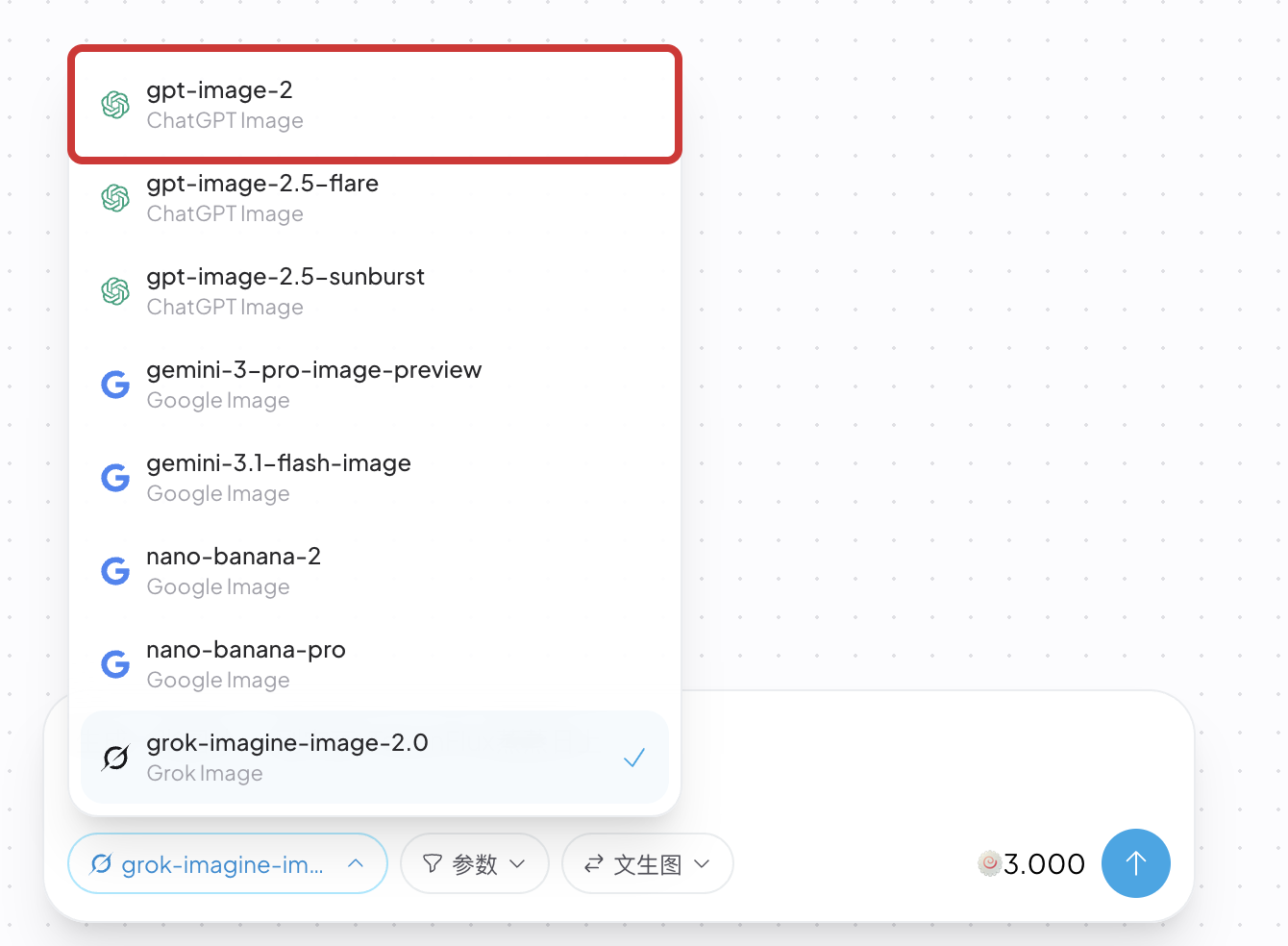
Click `Select a model` on the left of the prompt box and pick an image model from the list. Available models and their pricing are subject to the current [Models](https://tokenflux.dev/models) page.
## Generating an Image
1. Make sure the mode is `Generate`.
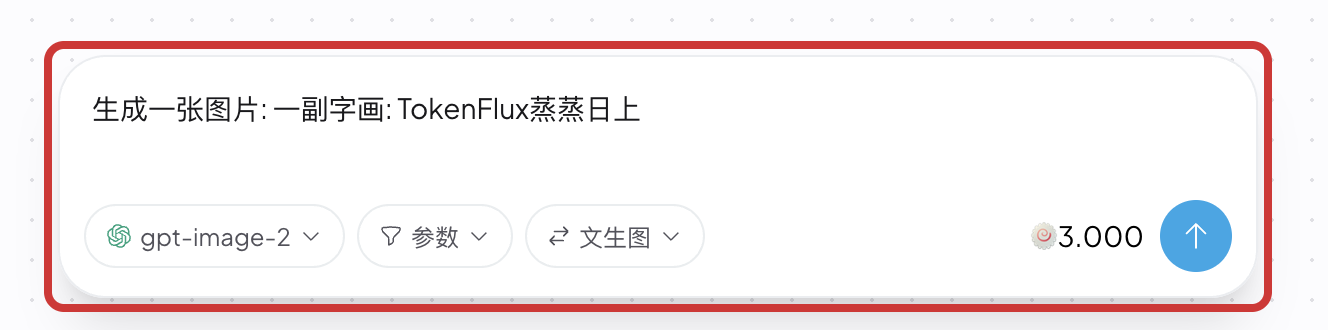
2. Describe the image in the prompt box.
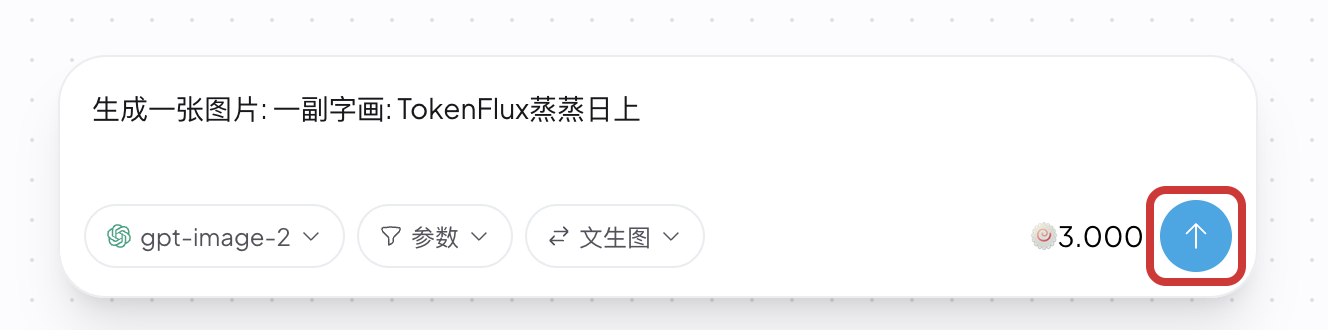
3. Click the send button in the bottom right.
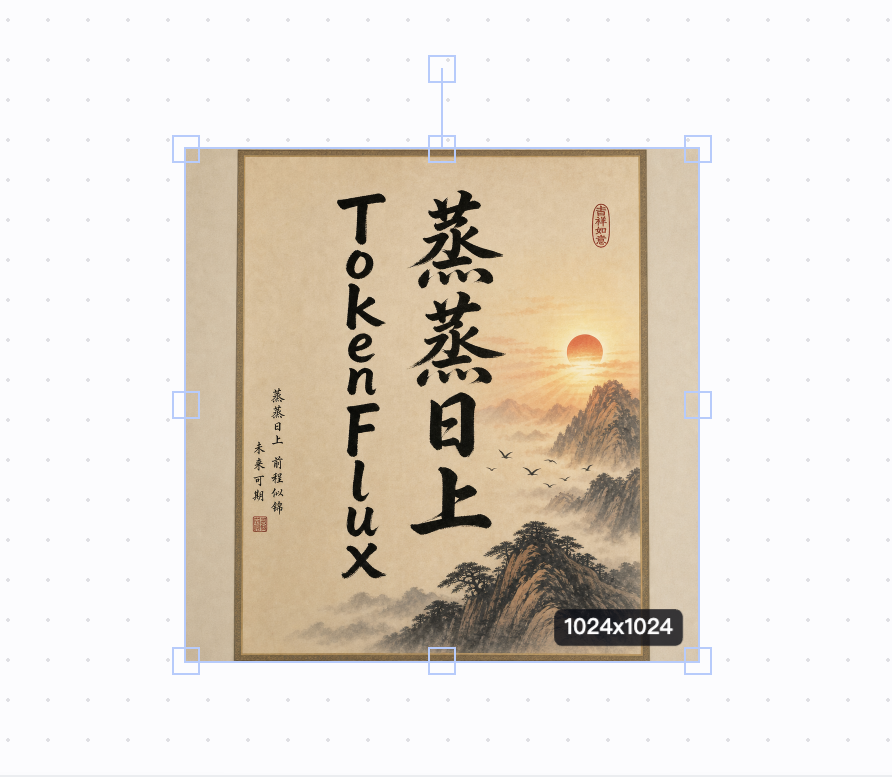
4. When generation finishes, the image appears on the canvas.
Before you submit, the left of the send button shows the cost for this run and the model currently selected. Queue and generation status appear in the bottom left, and you can keep submitting other tasks while one is running.
## Editing an Image
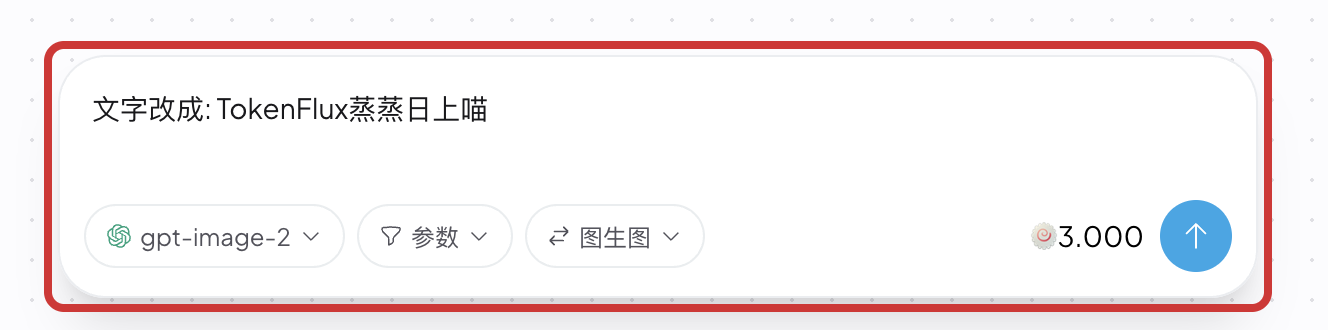
`Edit` uses the image selected on the canvas as reference. It suits changing text, switching style, or adding details to an existing image.
1. Click the image you want to edit on the canvas. A selection box appears.
2. Switch the mode to `Edit`.
3. Describe exactly what should change in the prompt box.
4. Click send.
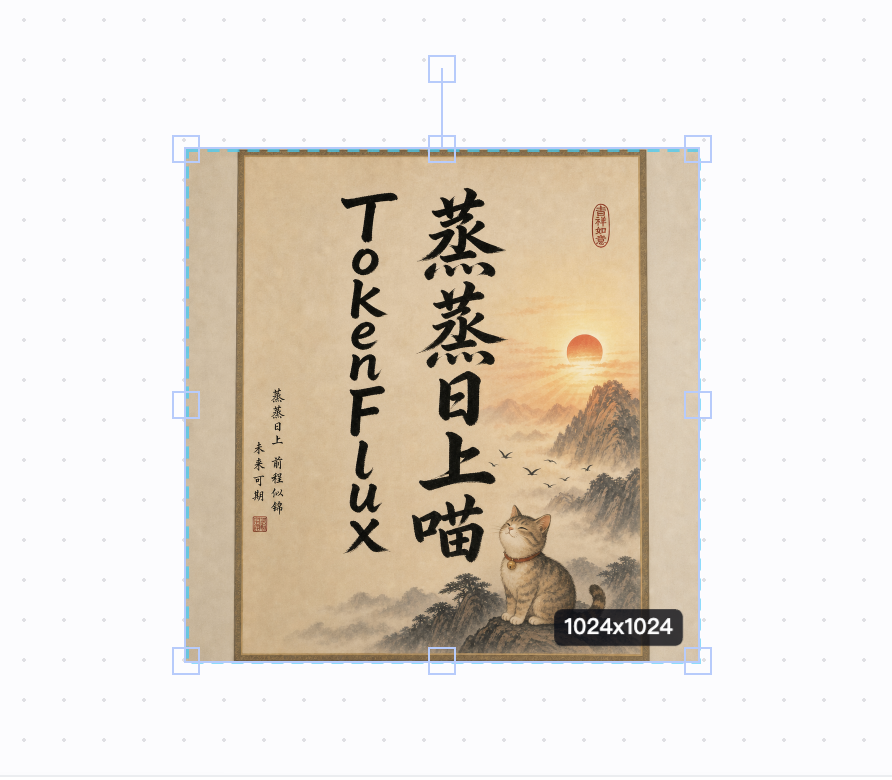
The result is placed on the canvas as a new image, and the original is kept.
## Inpainting
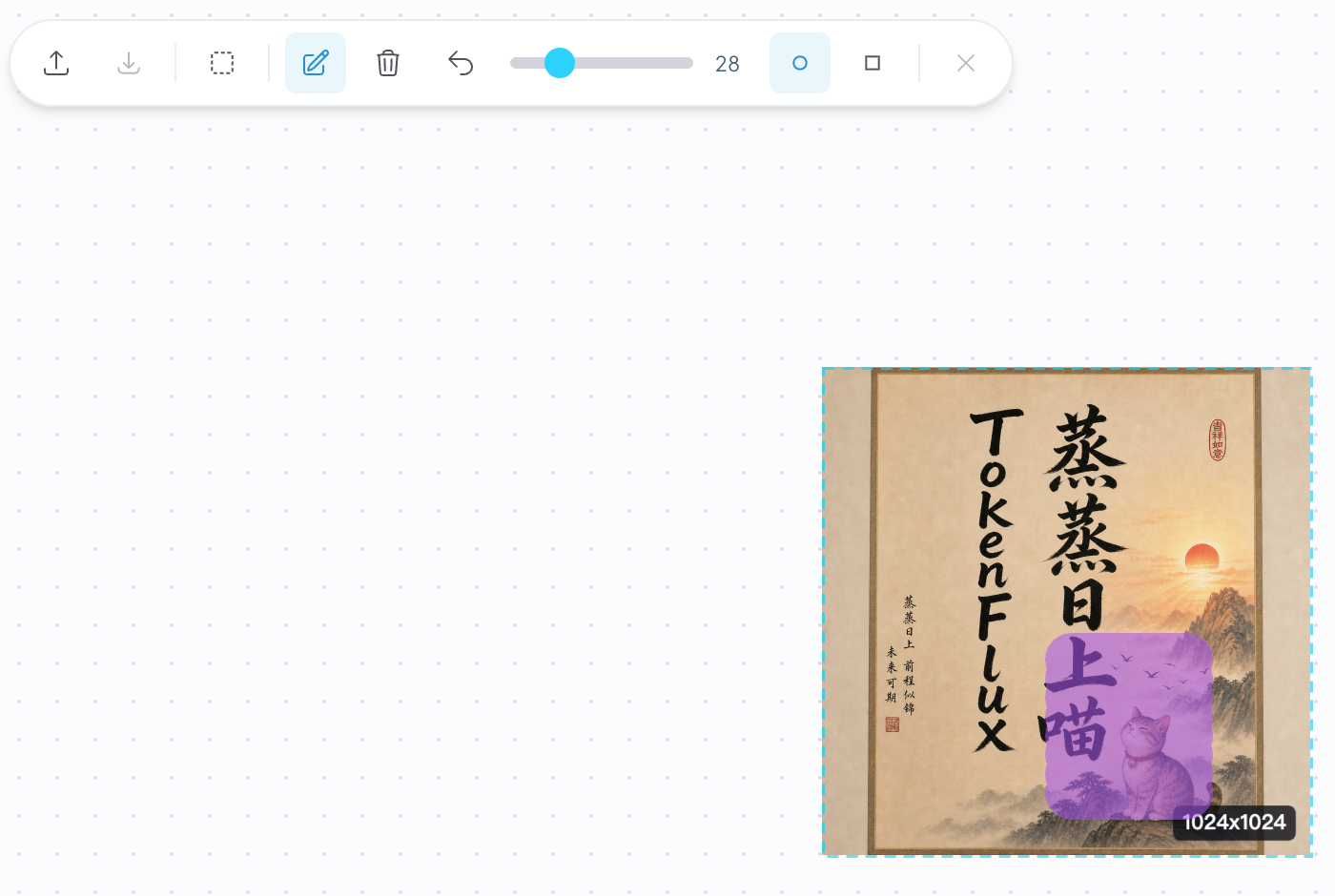
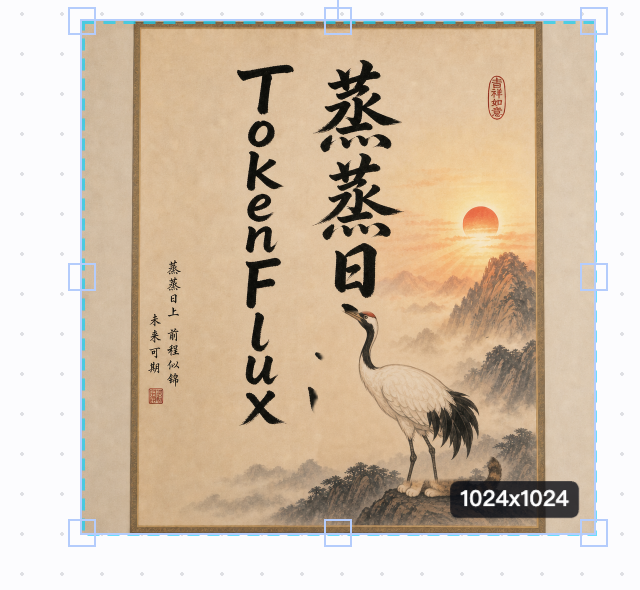
`Inpaint` redraws only the area you paint over. It suits replacing one element in an image.
1. Click the image you want to change on the canvas. A selection box appears.
2. Switch the mode to `Inpaint`.
3. Paint over the area to redraw with the brush. The purple stroke is the part that gets redrawn. The toolbar adjusts the brush size, undoes the last stroke, or clears all paint.
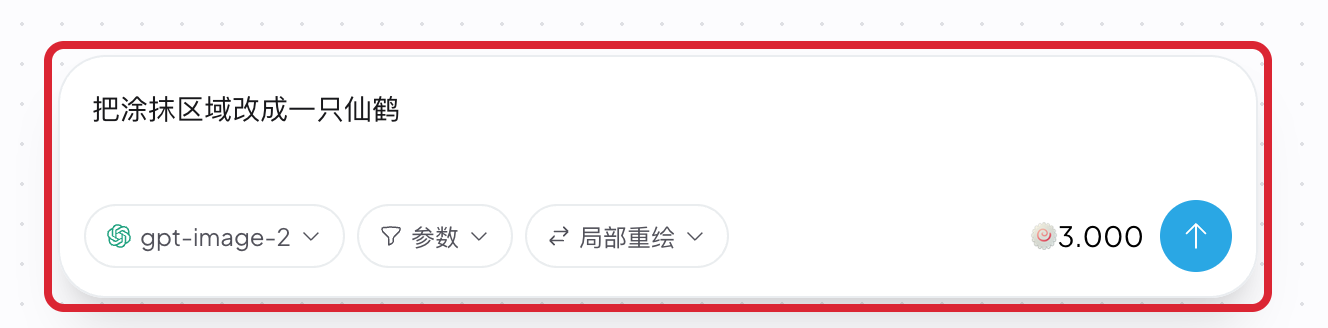
4. Describe what the painted area should become in the prompt box.
5. Click send.
Inpainting is currently provided by the image models in the OpenAI group.
## Generation Parameters
The `Params` button adjusts the output spec for this run.
| Parameter | Options |
| ------------ | ----------------------------------- |
| Image size | `1K`, `2K`, `4K` |
| Aspect ratio | `1:1`, `4:3`, `3:4`, `16:9`, `9:16` |
| Quality | `Low`, `Medium`, `High`, `Auto` |
| Background | `Auto`, `Opaque`, `Transparent` |
Size and quality affect the unit price. Check the cost next to the send button.
## Canvas and Assets
Toolbar at the top:
- `Upload image`: places a local image on the canvas, usable as reference for Edit or Inpaint.
- `Download selected image`: exports the currently selected image.
- `Select by dragging a box`: drag a marquee to select several images.
- `Remove selected image`: deletes the selected objects from the canvas.
The history button in the top right lists the generation and editing tasks from this session, and the bottom left shows what is currently queued or generating.
`Settings` in the top left offers two ways to clean up: `Clear canvas` only empties the canvas, while `Clear local creative data` also deletes the prompts and history stored in this browser.
## Billing
The Creative Studio charges per task. The cost is shown before you submit.
## Privacy and Data
Images on the canvas are stored in your browser, so clearing browser data removes them.
## Related Links
- [Models](https://tokenflux.dev/models) - available image models and pricing
- [Billing](https://docs.tokenflux.dev/en/docs/tokenflux/billing.md) - billing unit and charge order
- [Troubleshooting](https://docs.tokenflux.dev/en/docs/troubleshooting.md) - locate failures by status code