
Team
A team lets multiple members create and use their own API keys while sharing the owner's balance, subscription, and group entitlements. The owner can set a spending limit for each member and review usage across the whole team.
Go directly to the team page: https://tokenflux.dev/team
Roles
A team has only two roles:
| Role | Description |
|---|---|
| Owner | The creator of the team. Every team has exactly one owner, who pays for all team spending and manages members, limits, and team keys. |
| Member | Can create and use team keys, but only sees their own usage and limits. |
An account can belong to only one team at a time. Teams are single-level; there are no sub-teams.
Create a Team
- Sign in and open the team page.
- Enter a team name (1-100 characters).
- Click
Create team.
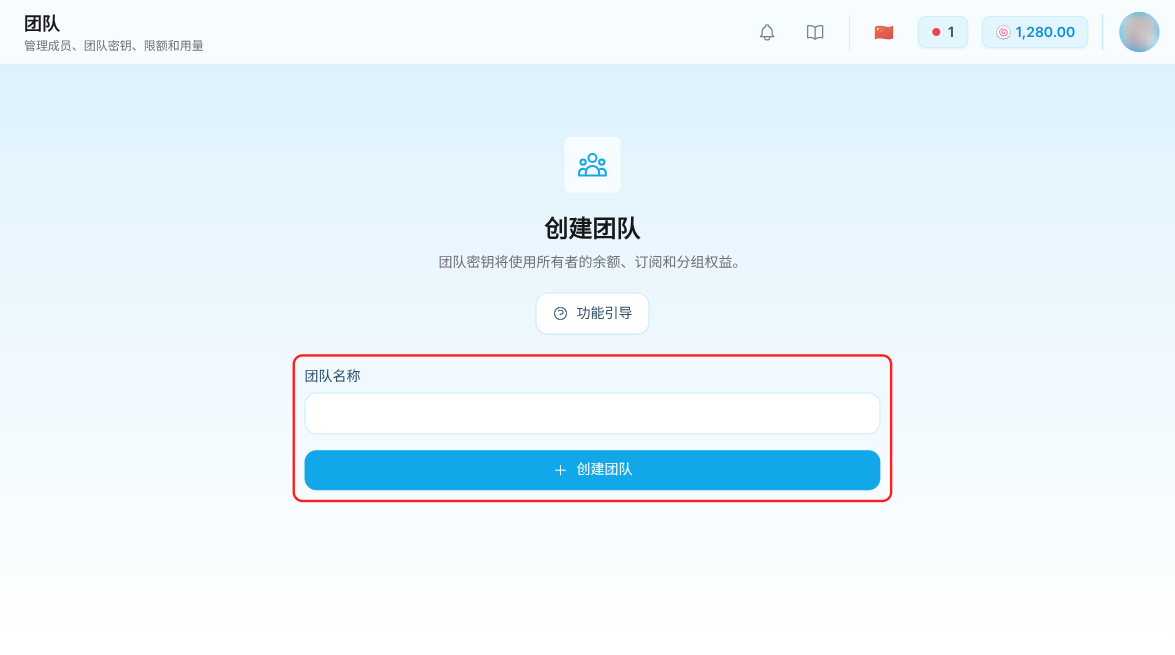
The creator automatically becomes the team's only owner.
Note: Team spending is deducted directly from the owner's balance and subscription. There is no separate team wallet or team top-up.
Invite Members
Only the owner can send invitations, which are strictly email-targeted. No invite codes or public links are provided.
- Find the invite section under the
Overviewtab on the team page. - Enter the person's email address and click
Send invite. - They receive an email containing the invitation link.
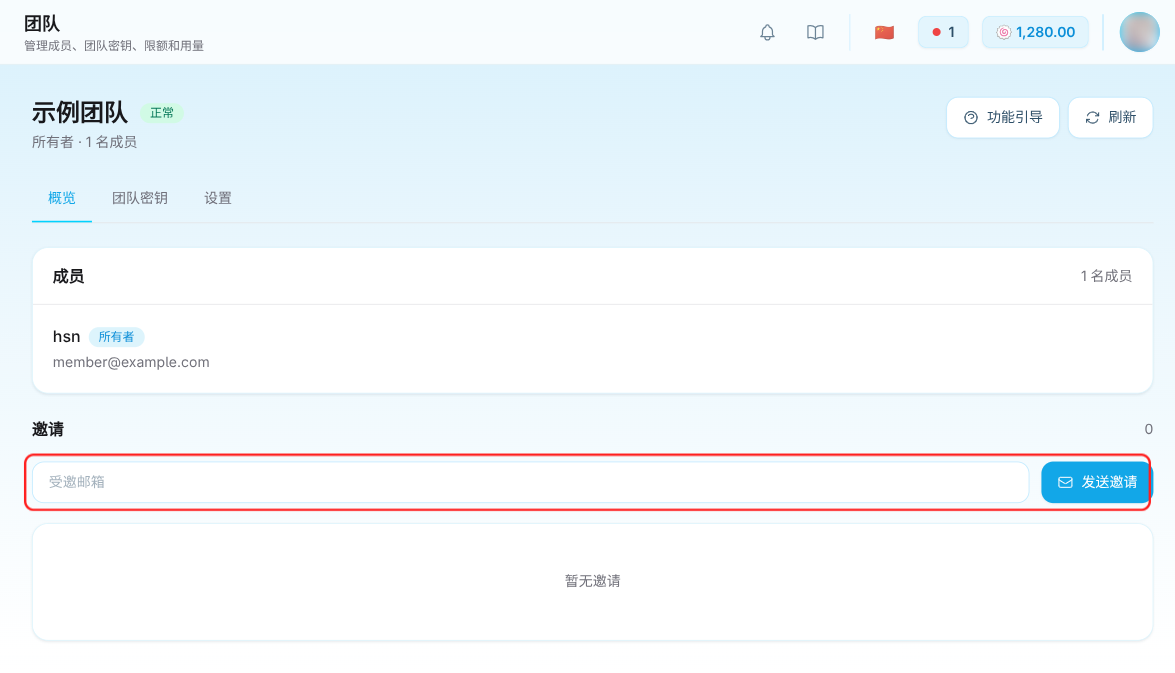
Invitation rules:
- Invitations are valid for 7 days. Send a new one after that.
- Each email address has a 60-second cooldown, and each team can send at most 20 invitations per hour.
- Only one pending invitation is kept per email address per team; a new invitation automatically revokes the previous one.
- Pending invitations can be resent or revoked.
The default member capacity is 10 (excluding the owner); the actual value is shown on the team page. Capacity can only be adjusted by a platform administrator, so contact the platform if you need more seats.
Join a Team
- Sign in with the TokenFlux account that matches the invited email address (register first if you do not have one).
- Click the link in the email; the invitation details appear in a dialog.
- Click
Acceptto join, orDeclineto reject.
Joining fails in these cases:
- The signed-in account's email does not match the invited email
- The invitation has expired or was revoked
- The current account has already joined another team
- The team is full, or the team is suspended
New members automatically inherit the team's current default member limits when they join.
Member Limits
Limits cap how much a single member can spend, across three windows: daily, weekly, and monthly. They use the same unit as your account balance (🍥).
- Enter
0for unlimited. - Limits apply to regular members only. The owner is never restricted by them.
- Windows roll over on the natural day, week, and month in the platform timezone, and usage resets automatically.
- Once any limit is reached, that member's team requests are rejected.
Under the Settings tab the owner can configure default member limits, which new members inherit on joining without affecting existing members. Under the Overview tab the owner can click Edit limits on a member to override the values individually and optionally reset daily, weekly, or monthly usage.
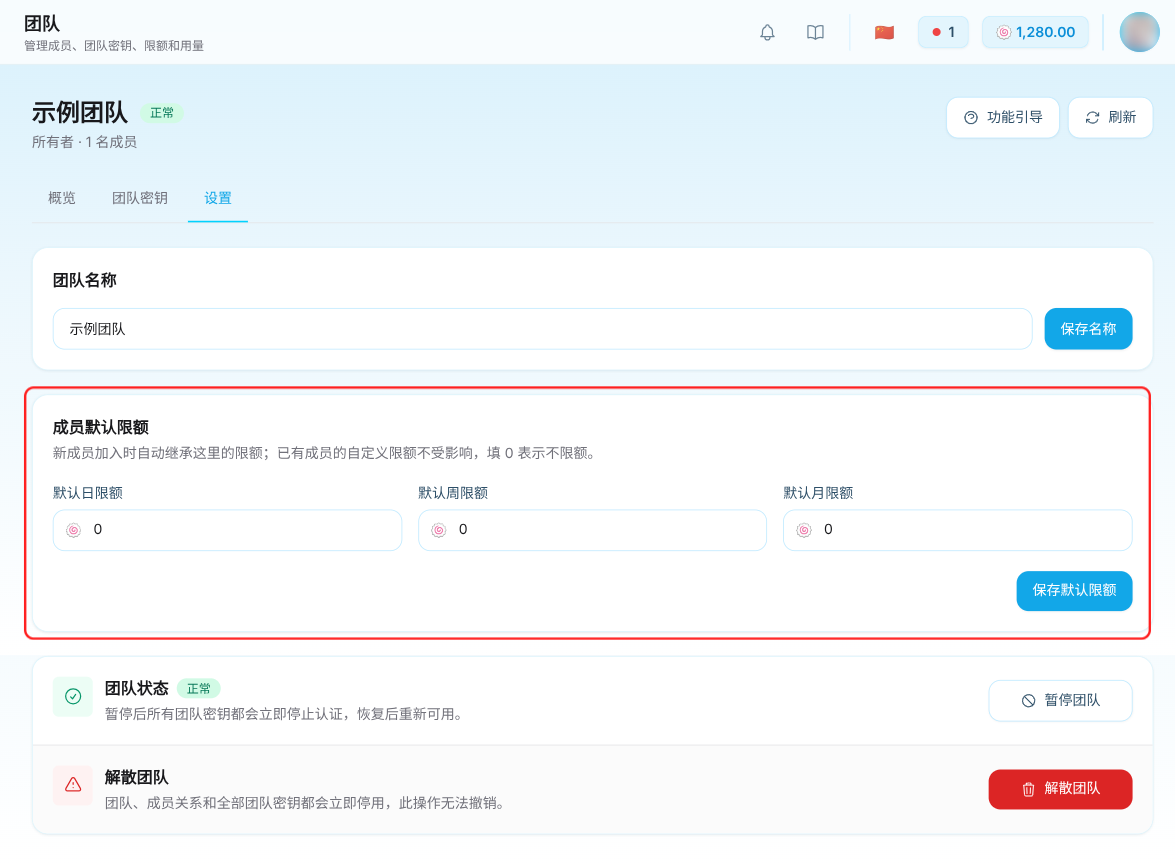
Members see their own daily, weekly, and monthly progress bars under the Overview tab.
Team Keys
Team keys are created on the API keys page using the scope dropdown in the upper-right corner to switch between Personal keys and Team keys.

- Every member, including regular members, can create team keys.
- Key scope cannot be converted between personal and team after creation.
- The groups available to a team key come from the owner's group entitlements, not the member's own.
- On the keys page, members only see the keys they created.
Under the Team keys tab on the team page, the owner sees every key in the team - name, status, masked key, owning member, and bound group - and can disable, enable, or delete any of them.
Note: The full key value is shown only once to its creator at creation time. Even the owner cannot view it.
A key disabled by the owner cannot be re-enabled by the member. The keys page marks it as disabled by the team administrator and admin locked.
Review Usage
- Members: Usage records show only your own requests. You cannot see other members' usage, nor the owner's balance and subscription details.
- Owner: Usage records also include every team request, with an extra
Membercolumn, plus two charts: member spending trend and member spending comparison.
The charts include members who already left the team but had spending within the selected range, so the totals stay consistent with overall team spending.
Member and Team Changes
| Action | Who can do it | Effect |
|---|---|---|
| Remove member | Owner | All of that member's team keys are disabled immediately; their personal keys are unaffected |
| Leave team | Member | All of your own team keys are disabled immediately |
| Transfer ownership | Owner | The target member must confirm within 24 hours; on acceptance the two roles swap and both members' limits reset to unlimited |
| Pause / resume team | Owner | While paused, all team keys immediately stop authenticating; resuming makes them available again |
| Dissolve team | Owner | The team, memberships, and all team keys are disabled immediately. This cannot be undone |
Additional notes:
- The owner cannot leave the team directly and must transfer ownership or dissolve the team first.
- The transfer target must be a current regular member of the team, and only one pending transfer can exist at a time.
- Pausing/resuming, transferring ownership, and dissolving a team are sensitive operations. If the page asks for step-up verification, enable TOTP in your account security settings first.
- All of the key-related effects above take place immediately; there is no cache delay.
Notes
- If you leave a team and rejoin later, your previous team keys are not restored and must be recreated.
- A team key requires both the owning member's account and the paying owner's account to be active. If either is deactivated, requests fail.
- When a team member triggers content moderation, the violation record and any enforcement apply to that member. The owner is recorded only as the payer and is not penalized because of it.
- Team spending shares the same billing as the owner's personal spending. There is no separate team invoice.
Related Links
- Create API Key - how keys are created
- Billing - group multipliers and purchase options
- Usage records - request details and spending trends
Implementation References
- Official team page: https://tokenflux.dev/team
- Team service source: https://github.com/TokenFlux/TokenRouter/blob/main/backend/internal/service/team.go
- Team API routes: https://github.com/TokenFlux/TokenRouter/blob/main/backend/internal/server/routes/user.go
- Team authentication and limit errors: https://github.com/TokenFlux/TokenRouter/blob/main/backend/internal/server/middleware/api_key_auth.go