
CC-Switch
CC-Switch manages provider settings and API keys for clients such as Claude Code, Codex, and OpenCode.
Installation
Open the latest release page and download the Windows installer (
.msirecommended).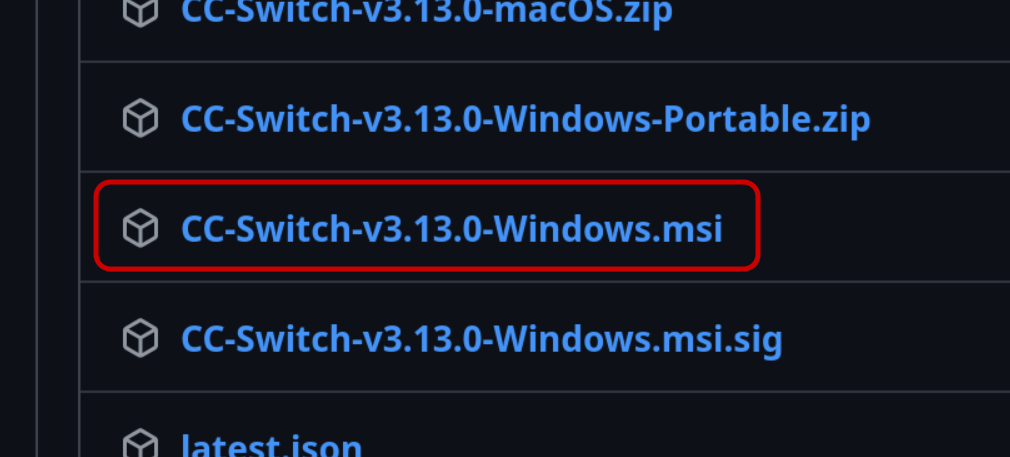
After the download finishes, double-click the installer.
Follow the installer wizard to complete installation.
Launch
CC-Switchfrom the Start menu.
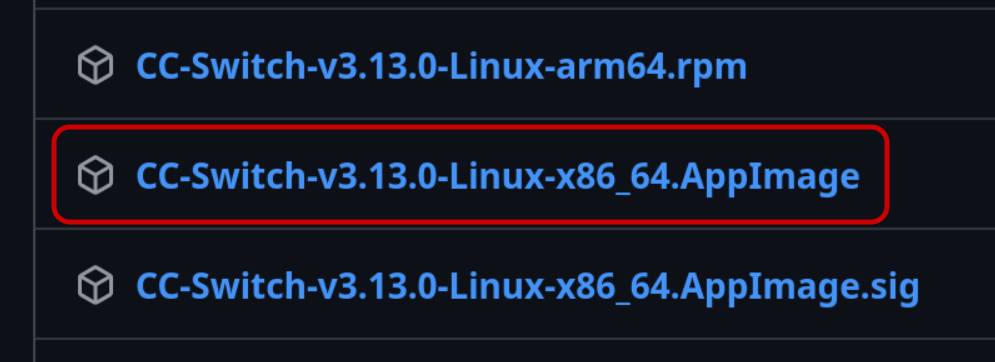
Add a Provider
After installation, use any of the methods below to connect TokenFlux to CC-Switch.
The key list can push an API key straight into CC-Switch, so there are no fields to fill in by hand.
Follow Create API Key to generate an API key.
Find that key in the list and click "More" on the right, then choose "Import to CCS".
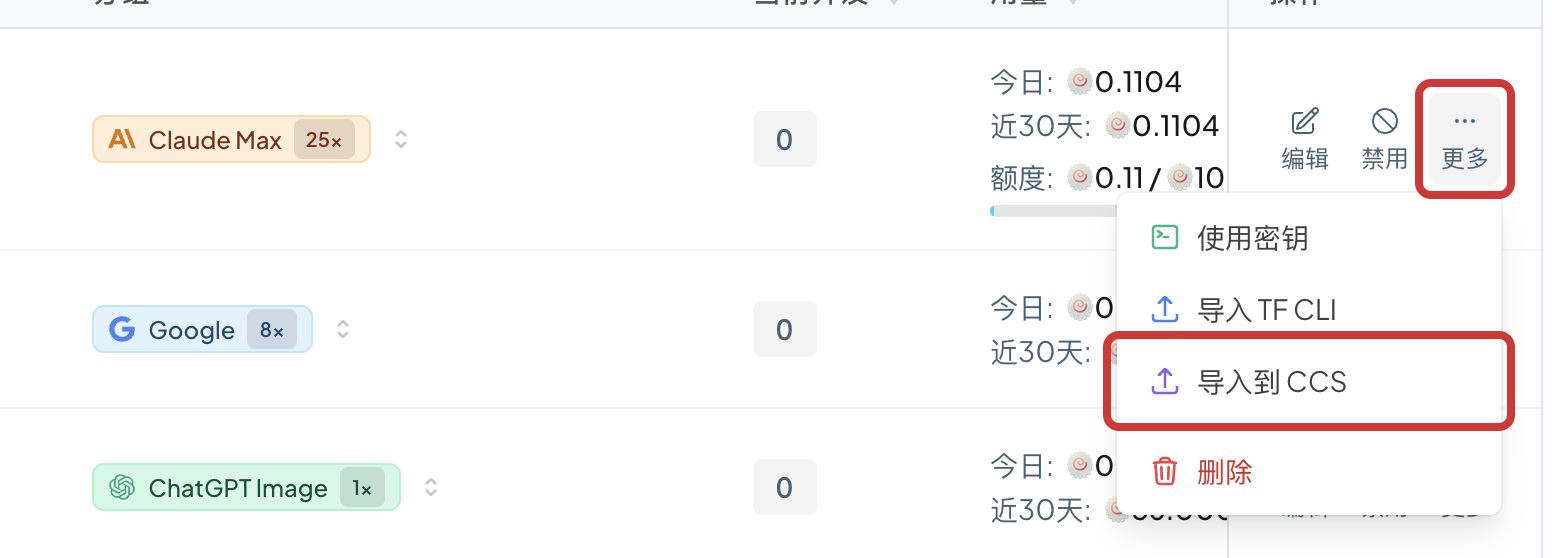
In the "Select client" dialog, choose the client and model, then click "Confirm".
After the browser opens
CC-Switch, check the provider name, API endpoint, and API key in the "Confirm provider import" window, then click "Import".Select the client in the sidebar, find the imported TokenFlux provider, and click "Switch".
Send a message to the selected model and confirm the request in Usage Records.
TIP
If the browser does not launch CC-Switch and reports that CC-Switch is not installed or the protocol handler is not registered, install CC-Switch using the steps above and click again.
Claude Max Environment Variables
If you manage Claude Code through CC-Switch, you can add ENABLE_PROMPT_CACHING_1H to the Claude provider's JSON configuration. When you enable the provider, CC-Switch writes this configuration into Claude Code's settings.json.
This variable enables a 1-hour prompt cache, which is useful for Claude Code sessions that repeatedly carry long context. Other Claude groups do not need it.
App-Specific Provider
- Select
Claude Codein theCC-Switchsidebar. - Find the Claude provider card for TokenFlux and click "Edit".
- Add the following to
envin the "Config JSON":
{
  "env": {
    "ENABLE_PROMPT_CACHING_1H": "1"
  }
}
Universal Provider
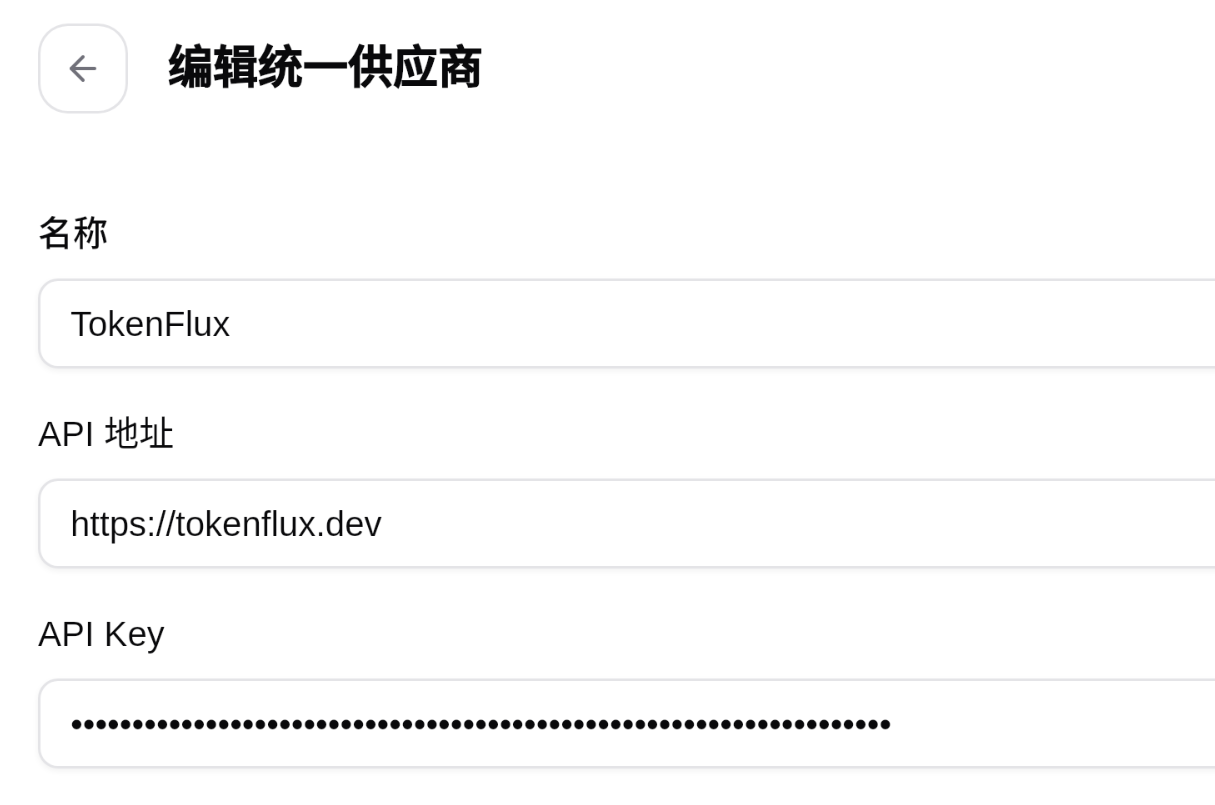
A universal provider's basic form only contains Name, API Key, API URL, and model configuration, without a separate environment variable field. When using a universal provider:
- First create and sync the universal provider from the "Universal provider" tab above.
- Return to the
Claude Codeapp and edit the synced Claude provider. - Add
"ENABLE_PROMPT_CACHING_1H": "1"to the provider's JSONenv. - Save and enable the Claude provider.